Employee labour rates
Last updated - Jun 24, 2026 at 12:10PM
Labour rates are set at the employee level and can be set as a normal/default rate and optionally per activity that is being worked on, which would override the normal rate.
By setting employee rates, you can report on the estimated cost of labour per employee and/or job/activity.
Setting labour rates
Follow the instructions below for how to set different types of employee rates.
Employee normal rate
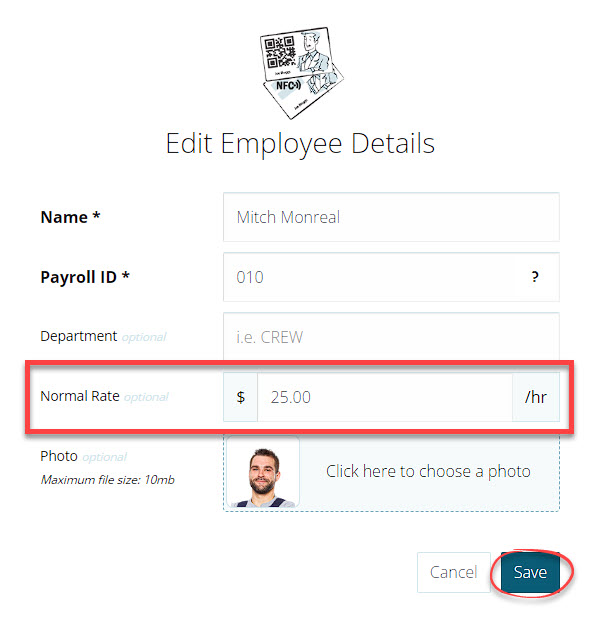
The normal rate is the default rate that applies to all time recorded by an employee. It's useful for tracking the cost of labour when employees are performing work that doesn't have a specific activity rate set.
Follow these steps to set a normal rate for an employee:
In your TimeDock web dashboard, navigate to Setup > Employees.
Add a new employee or edit an existing one.
Enter an amount into the Normal Rate textbox and click the Save button.
Employee activity rates
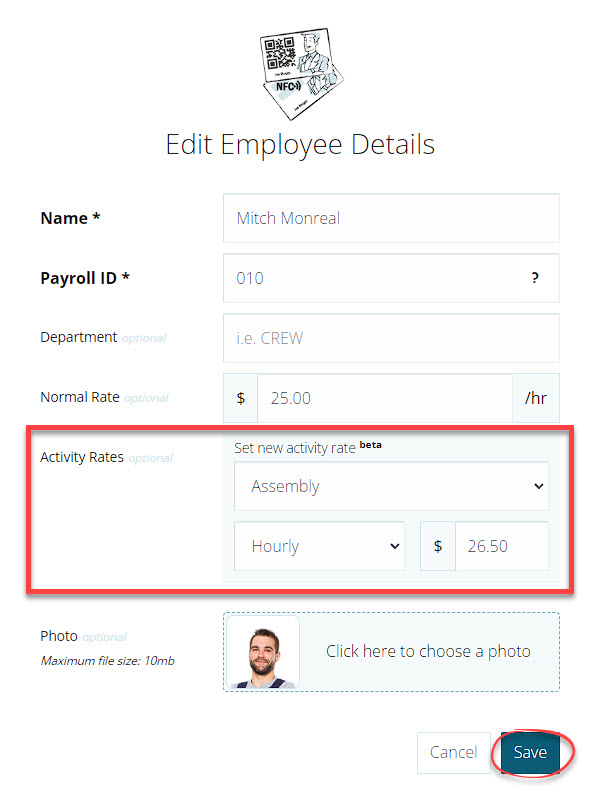
Setting activity rates allows you to report on the variable monetary value of time spent by employees, based on the type of work they perform. Any activity rates that an employee has in effect will apply when they're working on those activities, and will override the employee's Normal Rate.
Follow these steps to set an activity rate for an employee:
Ensure that you have first adding at least one Activity to your TimeDock account. See Activities for more information.
In your TimeDock web dashboard, navigate to Setup > Employees.
Add a new employee or edit an existing one.
In the Activity Rates section, select an activity, a multiplier, and monetary value, then click the Save button.
Repeat the above steps for each activity you wish to set a rate for, or to update an existing activity rate.
Labour cost reporting
Timesheet, summary reports, and Custom CSV Exports include an option to show costings. With this option selected, the reports will include a labour cost column next to the hours column, representing the hours converted to the monetary value based on the employee rates that are set.
Timesheet reporting
To include a labour cost column on your timesheet reports, click on the $ icon in the toolbar above the timesheet.

Summary reporting
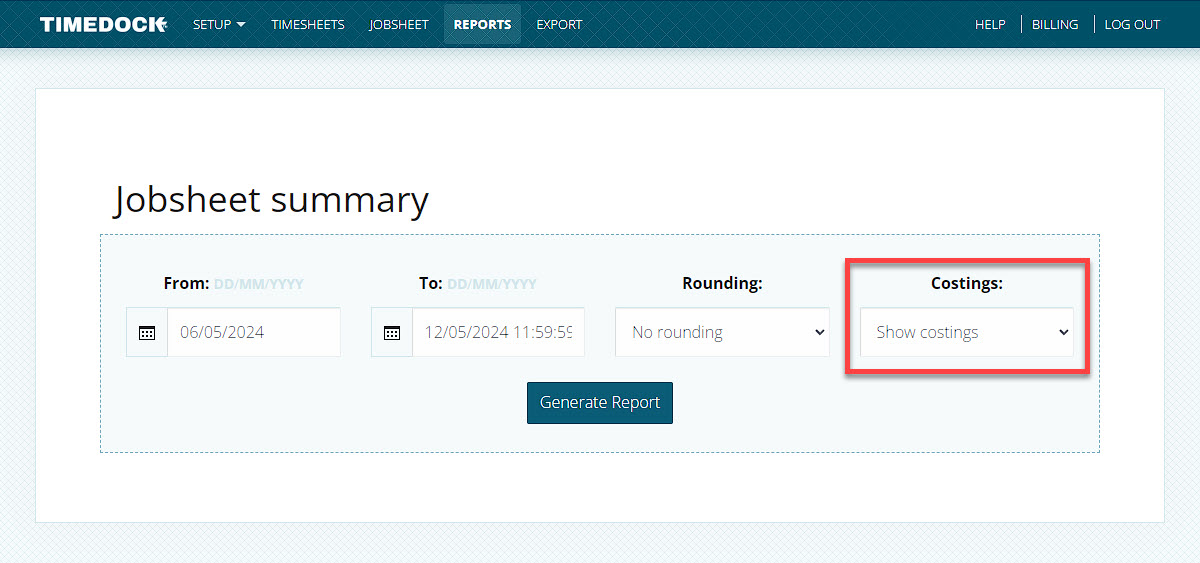
To include a labour cost column on your summary reports, tick the Show costings checkbox in your report filters before clicking on Generate Report.
Custom CSV export
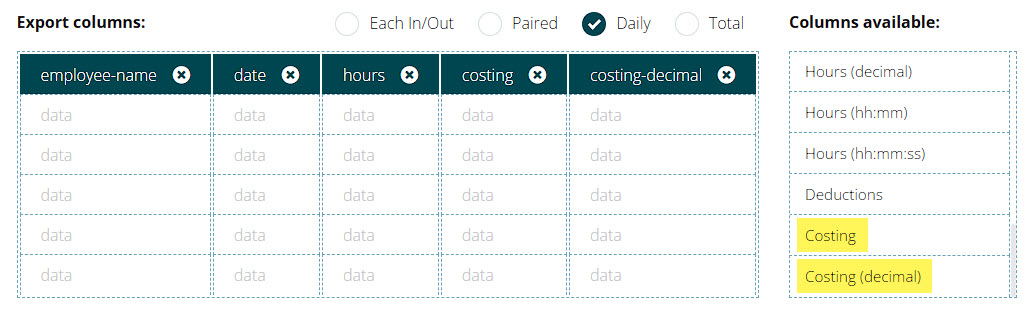
To include labour cost columns in your Custom CSV Exports, select the Costing and/or Costing (decimal) column from the Columns available list on the right-hand side.
The Costing column will produce a monetary value with currency symbol, and the Costing (decimal) column will produce a raw numerical value, which is useful for sorting or aggregating in spreadsheet applications.